Password Manager Emergency Access: How It Works and Where It Falls Short
If you use a password manager, there is a good chance it already has an emergency access feature, and an equally good chance you have never set it up. The idea is sound: designate someone who can request access to your vault, with a built-in waiting period that gives you time to decline if the request was not expected. It is a genuine improvement over the alternative, which for most people is no plan at all. It is also coarser than it looks, and it stops at the edge of what a password manager was built to hold.
This covers how the emergency-access model works across the major password managers, where it tends to fall short, and what to reach for when the thing that needs to be reachable is a file rather than a login.
How emergency access works in a password manager
The mechanism is broadly the same across tools. You nominate a trusted contact who also uses the same password manager. That person can, at some point, request emergency access to your vault. You are notified, and a waiting period begins, often configurable from a few hours to several days. If you do nothing before the timer runs out, access is granted. If you decline within the window, it is not.
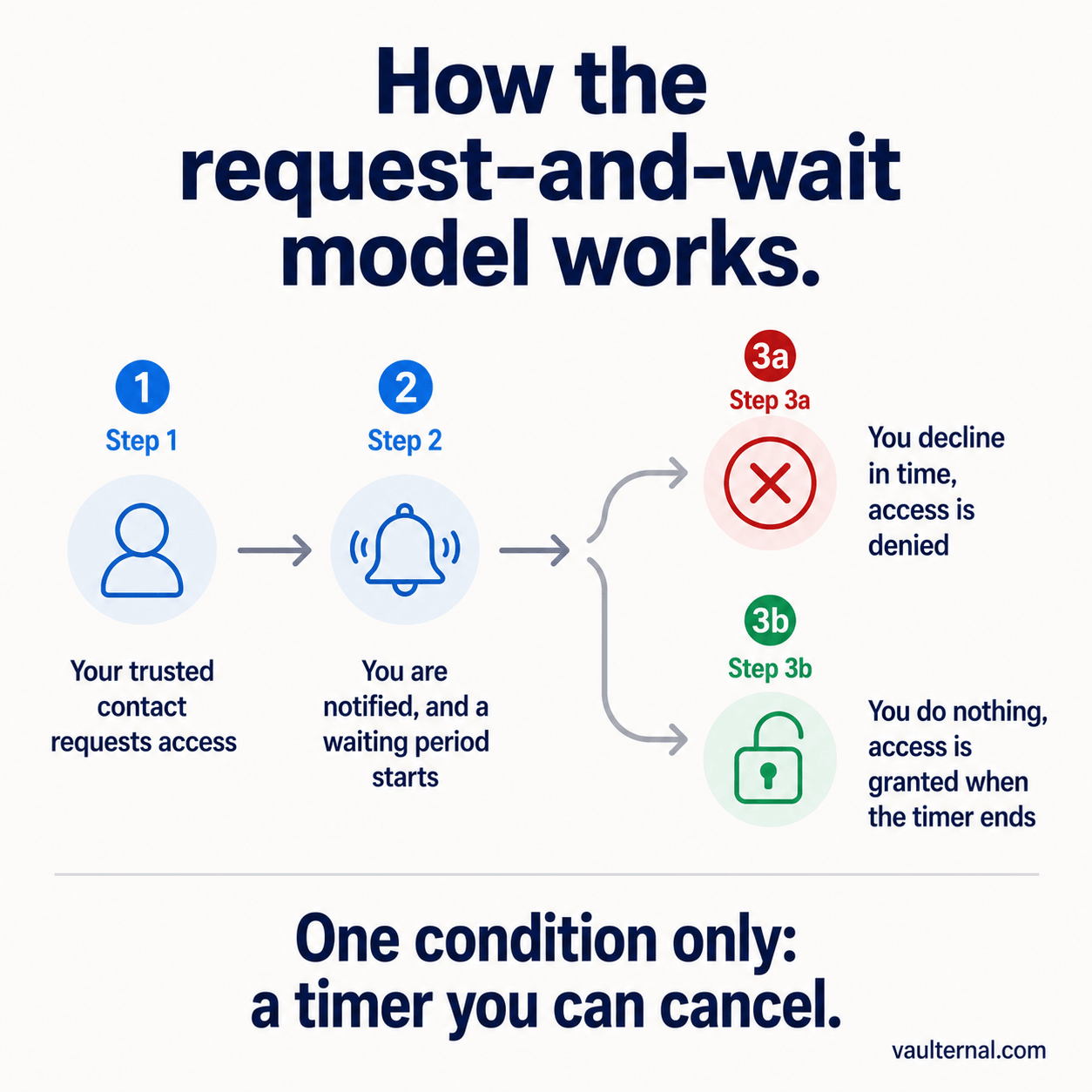
The request-and-wait model, the one condition every password manager offers.
1Password structures this through its family and team recovery features. Bitwarden offers a dedicated emergency access system with the takeover-after-wait model. LastPass and Dashlane have long provided similar emergency-contact mechanisms. The waiting period is the clever part: it means a contact cannot quietly reach your vault while you are simply busy, because you retain the ability to cancel until the timer expires.
For its intended job, sharing your everyday logins with a trusted person when you genuinely cannot get to them, this works well. The trouble starts when people assume it covers more than it does.
Where the model falls short
A few limitations show up once you look closely.
The first is scope. Emergency access is usually all-or-nothing. When the timer expires, your contact gets your whole vault rather than a specific item you chose for them. There is rarely a way to say that one person should be able to reach a single folder and nothing else. For a tool that holds every login you have, handing over the whole thing is a heavy default.
The second is coverage. A password manager is built for credentials. Emergency access therefore reaches your passwords, and on some plans your secure notes, but it is not designed for the things that sit next to passwords and matter just as much: recovery codes, a scan of a passport, a hardware wallet's recovery material, insurance and property documents, a bundle of files a family member would actually need. We covered this gap in the problem with password managers for non-password secrets. Emergency access carries the same limitation.
The third is the condition itself. The only trigger on offer is the request-and-wait timer. That fits one situation. It does not let you open access on a specific date, after a defined period without you checking in, or under any rule other than a manual request from the contact. Real life has more shapes than that.
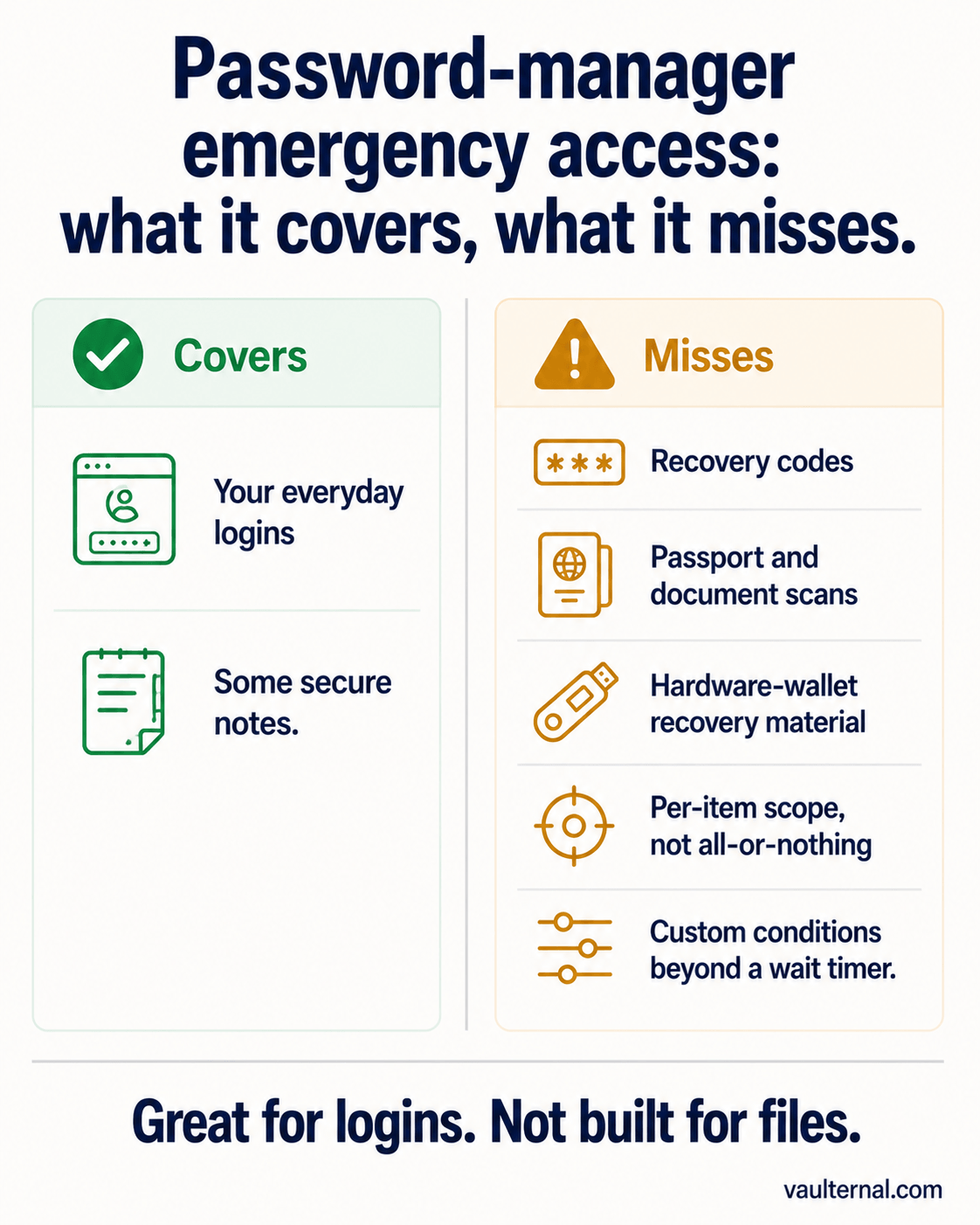
Password-manager emergency access is built for logins; the files beside them fall outside it.
What better conditional access looks like
The properties worth wanting are the mirror of those three limits. Access should be granular: one person, one folder, chosen by you, without exposing anything else. It should cover files as well as logins, because most of what a trusted person actually needs in an emergency is documents and recovery information. And the condition that opens access should be yours to define, whether that is a date, a period of inactivity, or a manual release.
This is a different product from a password manager, and it is fine for the two to coexist. The password manager keeps doing what it is good at. A purpose-built encrypted vault with conditional delivery handles the files and the finer-grained rules.
How Vaulternal handles it
Vaulternal is built around per-recipient, per-file conditional access. You designate a specific file or vault, choose who can reach it, and define the condition under which each recipient gains access. Files are encrypted in your browser with AES-256-GCM before they leave your device, so the service cannot read them, and each recipient gets their own encrypted access path rather than a shared key to everything. Sharing one vault with one person exposes nothing in the others.
The conditions go beyond a single request-and-wait timer. A recovery-code folder could open to a sibling only after you have not checked in for a defined window, which is what makes it useful during a long trip or a hospital stay. A document could be set to release on a date, or held until you manually trigger it. The delivery mechanism is described in how automated triggers work, and for the family setup specifically there is a walk-through in how to safely share passwords with your family. If you are comparing dedicated options, the zero-knowledge storage buyer's guide lines them up side by side. One tradeoff comes with this model: you hold the key yourself, so if you lose it no one can recover your files, which makes backing it up part of the setup.
Choosing what to use
The practical answer is layered rather than either-or. Set up your password manager's emergency access for your everyday logins, because that is exactly what it is for, and turn it on rather than leaving it unconfigured. Then, for the recovery codes, scanned documents, and files that a password manager cannot hold well, use an encrypted vault where you control who reaches which file and under what condition. The logins and the documents are different problems, and the strongest setup uses the right tool for each rather than stretching one to cover both.