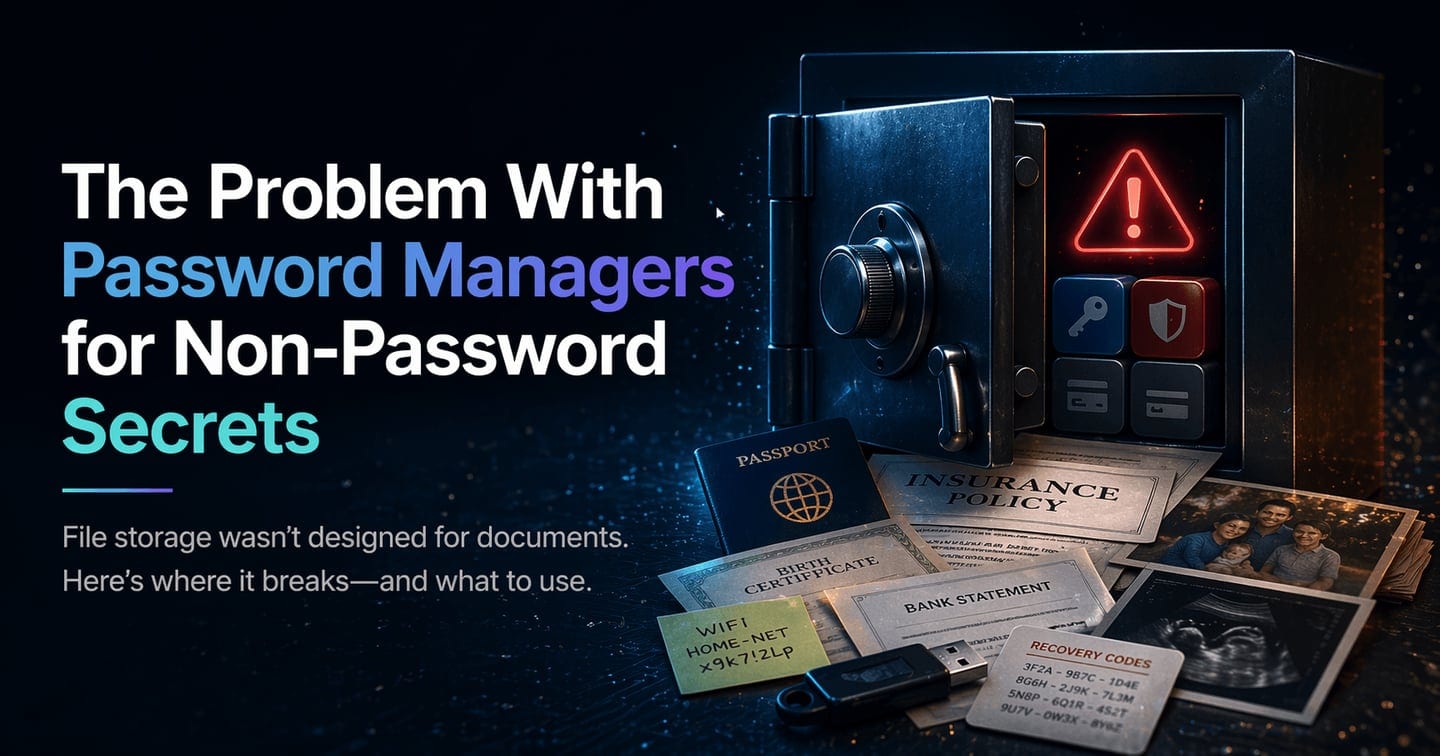
The Problem With Password Managers for Non-Password Secrets
If you use a password manager well, you eventually start storing things that are not passwords. A scan of your passport. Your insurance card as a PDF. A text file with crypto recovery codes. The login sheet for your home network. It feels natural. The vault is encrypted, you trust the tool, and you already open it every day. Where else would this stuff go?
The problem is that password managers were designed to store credentials: short strings of text, autofilled into login forms. Everything else (documents, scans, notes with attachments, files you might need to share with someone under specific conditions) is a secondary feature, bolted onto a system that was never built for it. The result is a set of limitations that most people only discover after they have committed to the workflow.
This article looks at where password managers fall short as general-purpose encrypted storage, and what that gap means for the files that matter most.
File Size Limits Are Tighter Than You Think
Every major password manager advertises some form of file storage, but the constraints are significant once you move beyond small text entries.
1Password offers 1 GB of document storage per person. That sounds reasonable until you consider that a single high-resolution passport scan can be 5 to 15 MB, a multi-page insurance policy PDF can easily reach 20 MB, and a small collection of scanned financial records will fill that gigabyte faster than expected. There is no option to purchase additional storage.
Bitwarden gives premium users 5 GB of total storage, but individual file attachments are capped at 500 MB on desktop and 100 MB on mobile. Free users cannot attach files at all. Additional storage can be purchased in 1 GB increments, which is more flexible, but the per-file cap still applies.
LastPass limits each attachment to 10 MB, with 50 MB total for free accounts and 1 GB for paid plans. It also restricts uploads to a specific list of allowed file types. If your file does not match one of the approved extensions, you cannot upload it.
Dashlane caps individual files at 15 MB and total storage at 1 GB. Notably, you cannot share Secure Notes that have files attached, which removes one of the main reasons you might want to store important documents in a shared vault.
These limits are not bugs. They exist because password managers encrypt and sync your entire vault across every device you use. Large files bloat sync times, consume mobile storage, and increase the computational cost of encryption and decryption on lower-powered devices. The architecture is optimized for thousands of small credential entries, not a handful of large documents.
The UX Wasn't Built for Documents
Beyond raw storage limits, the experience of managing files inside a password manager is consistently awkward. Password vaults are structured around items: a login, a credit card, a secure note. Files exist as attachments to those items, not as first-class objects.
This means you cannot browse your stored documents the way you would in a file manager or a cloud drive. There is no folder structure, no thumbnail previews, no way to organize a collection of related documents as a group. If you have stored a passport scan, an insurance card, and a birth certificate, each one is an attachment hanging off a separate vault item (or all three are attached to a single catch-all note, which creates its own organizational problems).
Search is limited too. You can search for the name of the vault item, but not the contents of an attached file. If you stored a tax document under a Secure Note titled "Important Stuff," good luck finding it six months later without scrolling through your entire vault.
This matters because the files people store in password managers tend to be the ones they need urgently and infrequently. You scan your passport before an international trip and do not look at it again until you are standing at a foreign airport and need the document number. The retrieval experience matters as much as the storage, and password managers optimize for neither.
No Delivery Logic, No Conditional Access
Password managers are built for a single user accessing their own credentials. Some offer sharing (1Password's shared vaults, Bitwarden's organization vaults, Dashlane's secure sharing), but the model is binary: someone either has access to a shared item, or they do not.
What none of them offer is conditional access. There is no way to say "give this file to my partner if I have not logged in for 90 days" or "release this document to my accountant on April 15" or "make these files available to a specific person only when I manually approve the release." These are not edge cases. They represent a common real-world need: ensuring that important files can reach the right person under the right conditions, without giving up access control in advance.
Consider a practical scenario. You are traveling internationally for several weeks. Your partner might need access to insurance documents, the deed to your house, or account credentials for a utility company. With a password manager, your options are limited: share the items now (which means your partner has permanent access whether you intended that or not), give them your master password (which defeats the entire security model), or hope nothing comes up while you are away.
This is a category of problem that password managers are not trying to solve, because it falls outside the scope of credential management entirely.
Single Point of Failure
Most password managers store your encrypted vault on the company's servers, with local copies synced to your devices. The encryption is strong (AES-256 is standard across the major providers), but the infrastructure is centralized. Your vault sits on one company's cloud, subject to that company's uptime, business continuity, and security posture.
The 2022 LastPass breach is the most visible example of what can happen. Encrypted vault data was exfiltrated along with metadata. The encryption held, but users with weak master passwords were exposed to offline brute-force attacks. The breach did not compromise the encryption algorithm. It compromised the infrastructure around it.
For passwords, this risk is manageable. You can rotate credentials. But the files people store in password managers (identity documents, financial records, personal letters, recovery phrases) are not things you can rotate. A passport number does not change because a vault was breached. The risk profile for non-password secrets is fundamentally different from the risk profile for credentials, and centralized storage concentrates that risk in a single target.
The Missing Layer: Encrypted File Vaults
The pattern that emerges is straightforward. Password managers are excellent at what they were built for: generating, storing, and autofilling credentials. They are adequate for small text secrets like Wi-Fi passwords, software license keys, and two-factor recovery codes (as long as those codes fit within the size and format constraints). But they are not a general-purpose solution for sensitive file storage, and they were never intended to be.
The gap is a tool built specifically for encrypted file storage, with a UX designed around documents rather than credentials, storage architecture that does not depend on syncing everything to every device, and access logic that goes beyond "shared or not shared."
A few products are starting to fill this space. Vaulternal, for instance, uses client-side AES-256 encryption with a zero-knowledge architecture (the service cannot read your files), stores encrypted data across distributed infrastructure rather than a single corporate server, and includes a conditional access system where users define time-based, inactivity-based, or manual triggers that control when chosen recipients can access specific files. It is designed for exactly the kind of documents people try to force into password managers: insurance policies, identity documents, financial records, personal letters, and anything else that needs to be both encrypted and reachable by a specific person under specific conditions.
This is not about replacing your password manager. It is about recognizing that credential storage and file storage are different problems with different requirements, and using the right tool for each.
Practical Takeaways
Keep your password manager for what it does best: credentials, two-factor codes, and small text secrets. For files that are sensitive, hard to replace, or might need to reach someone else under conditions you define, look at purpose-built encrypted storage.
When evaluating any option, the questions that matter are the same ones that matter for any encryption tool: who holds the keys, where is the data stored, and what happens if you need someone else to access it. If those answers satisfy you, the tool is probably worth trying. Vaulternal offers a free tier if you want to see how the model works in practice.